Interface Overview
Learn the main parts of the Handrive interface.
Main Layout
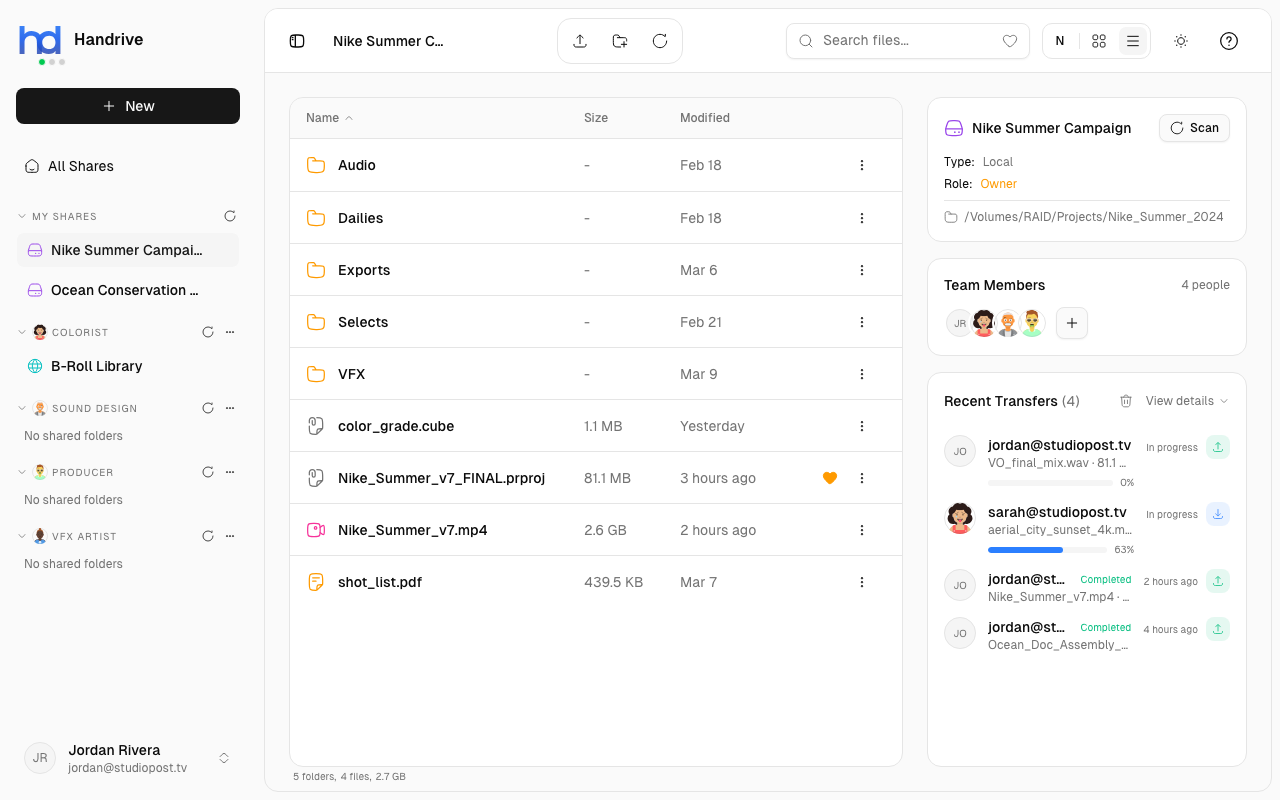
Handrive's interface consists of four main areas: Sidebar, Header, File Browser, and Info Panel.
Sidebar
The left sidebar provides navigation and quick access to shares.
- Logo & Status - The colored indicator shows your connection status (green = online, yellow = reconnecting, red = offline)
- + New - Create a new share or add a contact
- All Shares - View all shares from you and your contacts
- My Shares - Your locally created shares
- Contacts - Collapsible sections for each contact, showing their shares
- User Profile - Click your avatar at the bottom to access profile, settings, and sign out
Header
The top header provides tools for the current view.
Quick Actions
Three action buttons for the current share:
- Upload - Upload files to the current folder
- New Folder - Create a new folder
- Refresh - Refresh the file list
Search Bar
Search files within the current share. The star icon filters to show only starred files.
View Controls
- Sort - Sort by name, size, or date modified
- Grid/List - Toggle between grid and list view
- Theme - Switch between light and dark mode
- Help - Open documentation
File Browser
The main content area shows your files and folders.
Breadcrumb Navigation
Shows your current location. Click any part to navigate back.
File List
Files display with:
- File/folder icon based on type
- Name
- Size (for files)
- Last modified date
- Star indicator (for favorites)
- Action menu (three dots)
Selection & Actions
- Click a file to select it
- Shift+Click to select a range
- Cmd/Ctrl+Click to select multiple
When files are selected, an Action Bar appears at the bottom with:
- Download
- Copy
- Star/Unstar
- Edit Tags
- Move to Trash
Info Panel
The right panel (on larger screens) shows context about the current share:
Share Info
- Share name and type (Local/Remote)
- Your role (Owner, Admin, Editor, Viewer)
- Local path (for local shares)
- Scan button to refresh from disk
Team Members
Shows who has access to this share. Click + to invite new members.
Recent Transfers
Live view of ongoing and recent file transfers with:
- Contact name
- File being transferred
- Progress percentage
- Status (In progress, Completed, Failed)
Creating a Share
To share files from your computer:
- Click + New in the sidebar
- Select New Share
- Enter a name for the share
- Click Browse to select a local folder
- Click Create
The folder's contents will be scanned and available to share with others.
Adding Files
Files in a share come from the local folder you selected. To add files:
- Using Finder/Explorer: Add files directly to the shared folder on your computer, then click Scan to update
- Using Upload: Click the upload button in the header to upload files to the current location
- Drag & Drop: Drag files into the Handrive window (coming soon)
View Modes
Grid View
Files displayed as cards with icons. Best for browsing images and visual content.
List View
Files in a detailed table with sortable columns. Better for managing many files.
Switch between views using the toggle buttons in the header.