Organizing Files
Keep your files organized with folders, stars, and tags.
Creating Folders
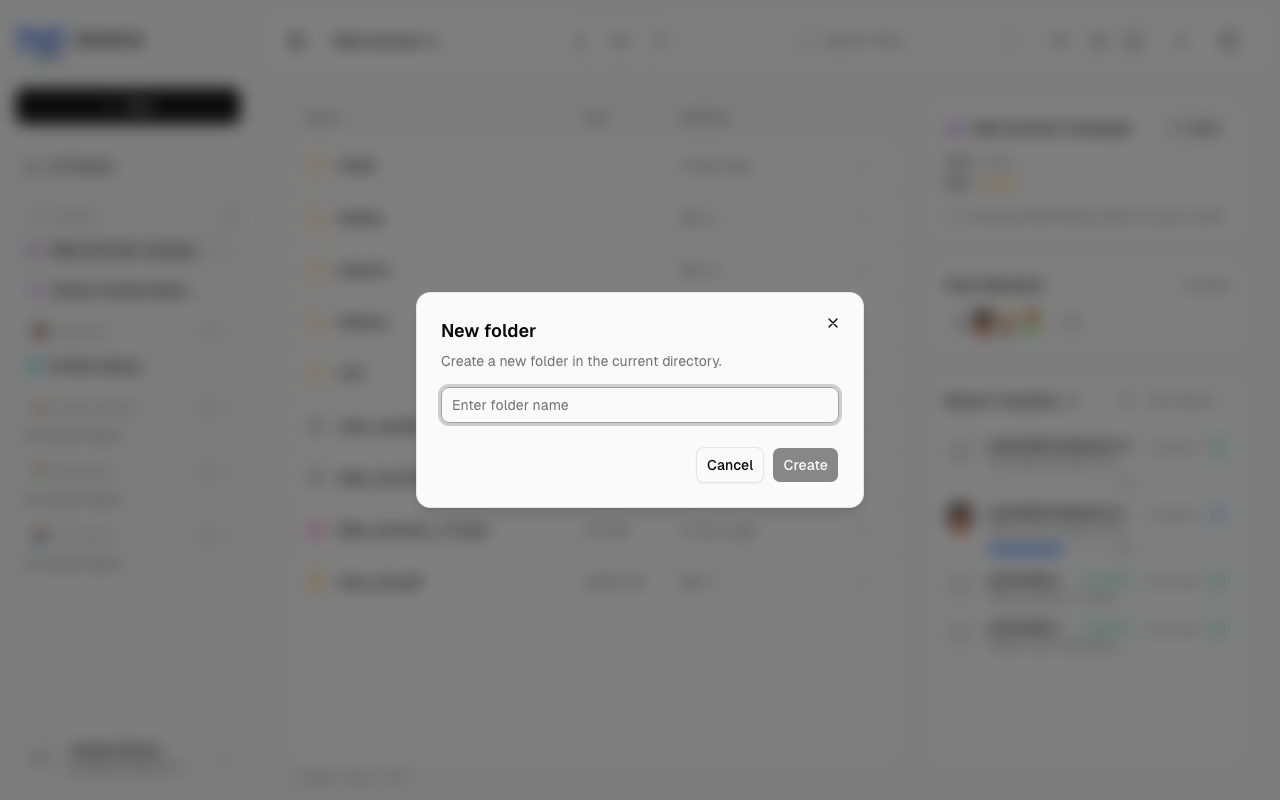
To create a new folder:
- Navigate to where you want the folder
- Right-click in empty space → New Folder (or use the menu)
- Enter a folder name
- Press Enter or click Create
note
You need Editor or higher permission to create folders in a share.
Starring Files
Stars help you mark important or frequently accessed files.
To Star a File
- Click the star icon on the file
- Or right-click → Star
- Or select files and click Star in the action bar
To Unstar
- Click the filled star icon
- Or right-click → Unstar
Using Stars
- Stars persist across sessions
- Use the star filter to show only starred files
- Great for marking files you're currently working on
Tagging Files
Tags let you categorize files with custom labels.
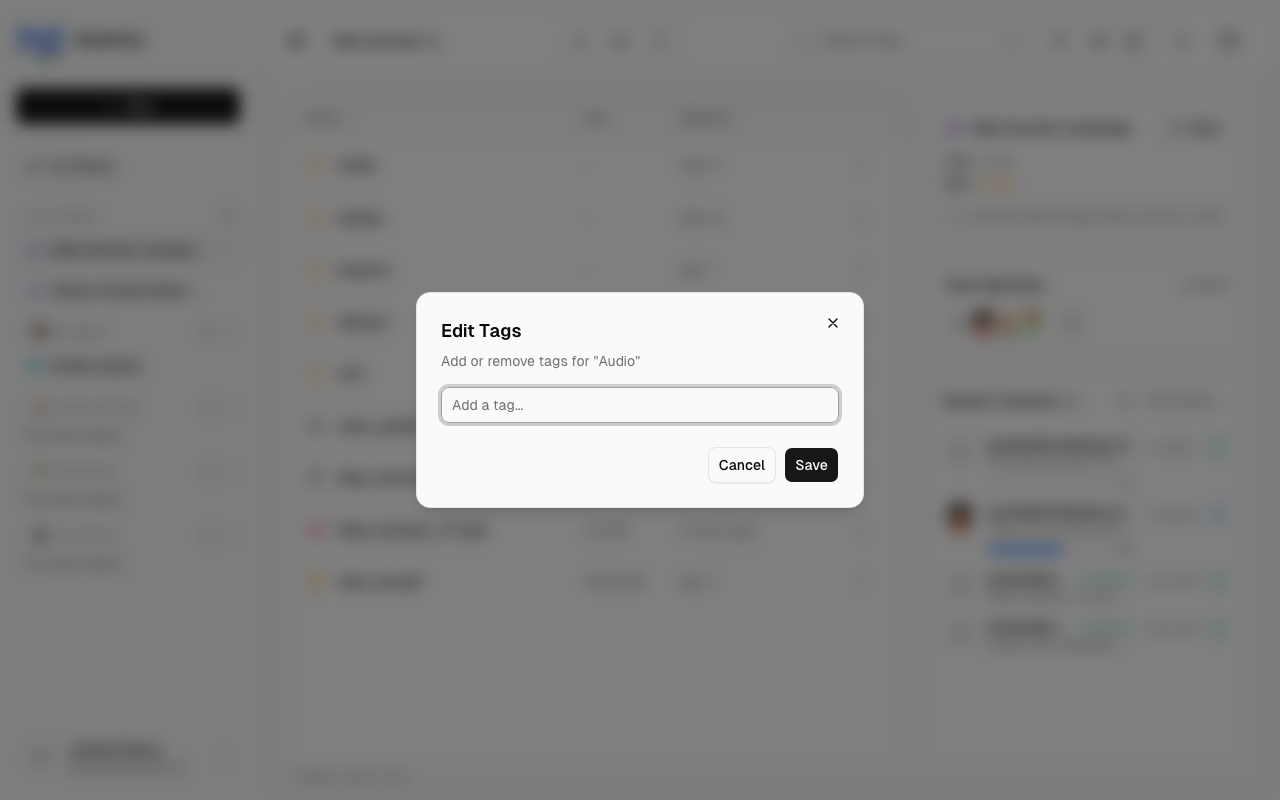
Adding Tags
- Select one or more files
- Click Tags in the action bar (or right-click → Edit Tags)
- Add tags by typing and pressing Enter
- Click Save
Tag Tips
- Use consistent tag names across files
- Tags are case-sensitive ("Important" ≠ "important")
- You can add multiple tags to one file
- Tags help organize files that span multiple folders
Batch Tagging
Select multiple files to add the same tags to all of them at once.
Renaming Files
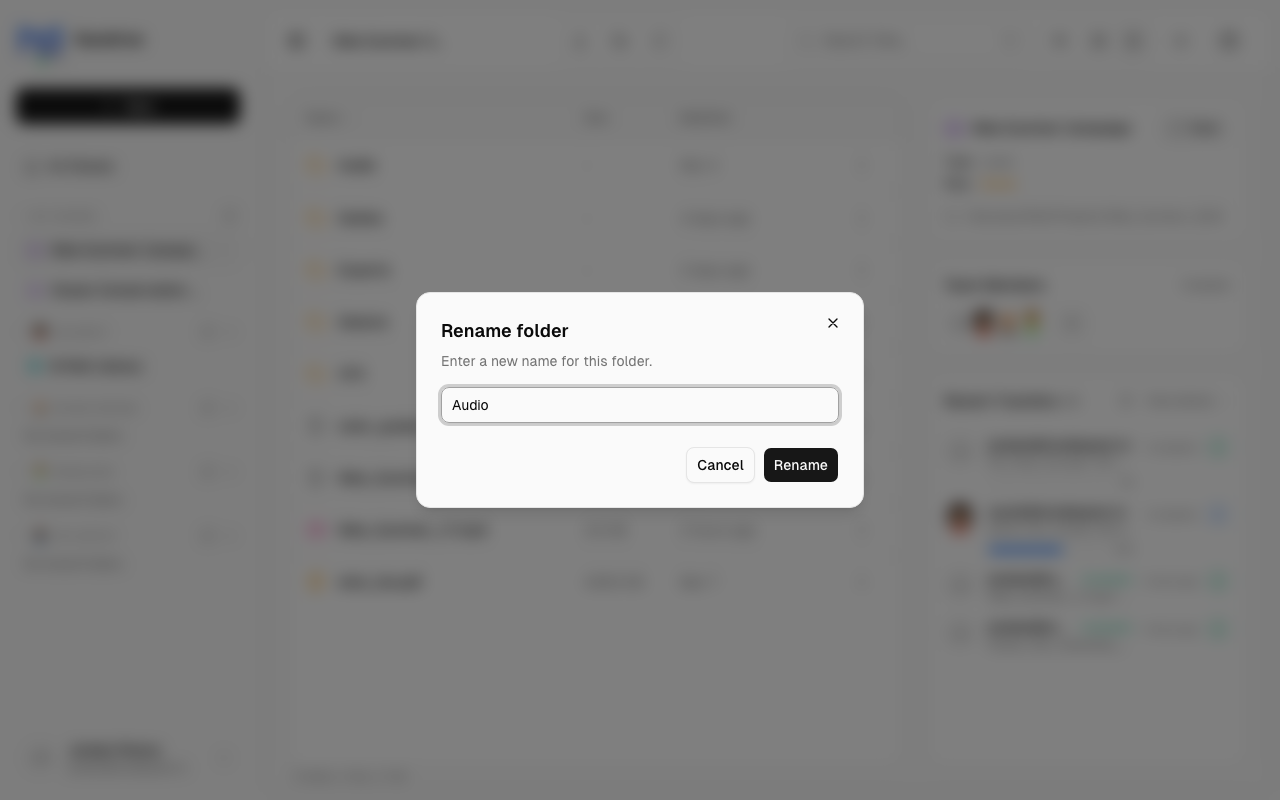
To rename a file:
- Right-click the file
- Select Rename
- Edit the name
- Press Enter or click Save
caution
Renaming changes the actual file name on disk. This affects anyone accessing the share.
Best Practices
Folder Structure
- Use descriptive folder names
- Keep nesting reasonable (avoid 10+ levels deep)
- Group related files together
Naming Conventions
- Use consistent naming patterns
- Include dates for versioned files (e.g., "Report_2024-01-15.pdf")
- Avoid special characters that may cause issues
Using Stars vs. Tags
| Use Stars When... | Use Tags When... |
|---|---|
| You need quick access NOW | You want to categorize long-term |
| Marking temporary priorities | Grouping files by project/topic |
| Personal "bookmarks" | Team-wide organization |