File Operations
Upload, download, and manage files in your shares.
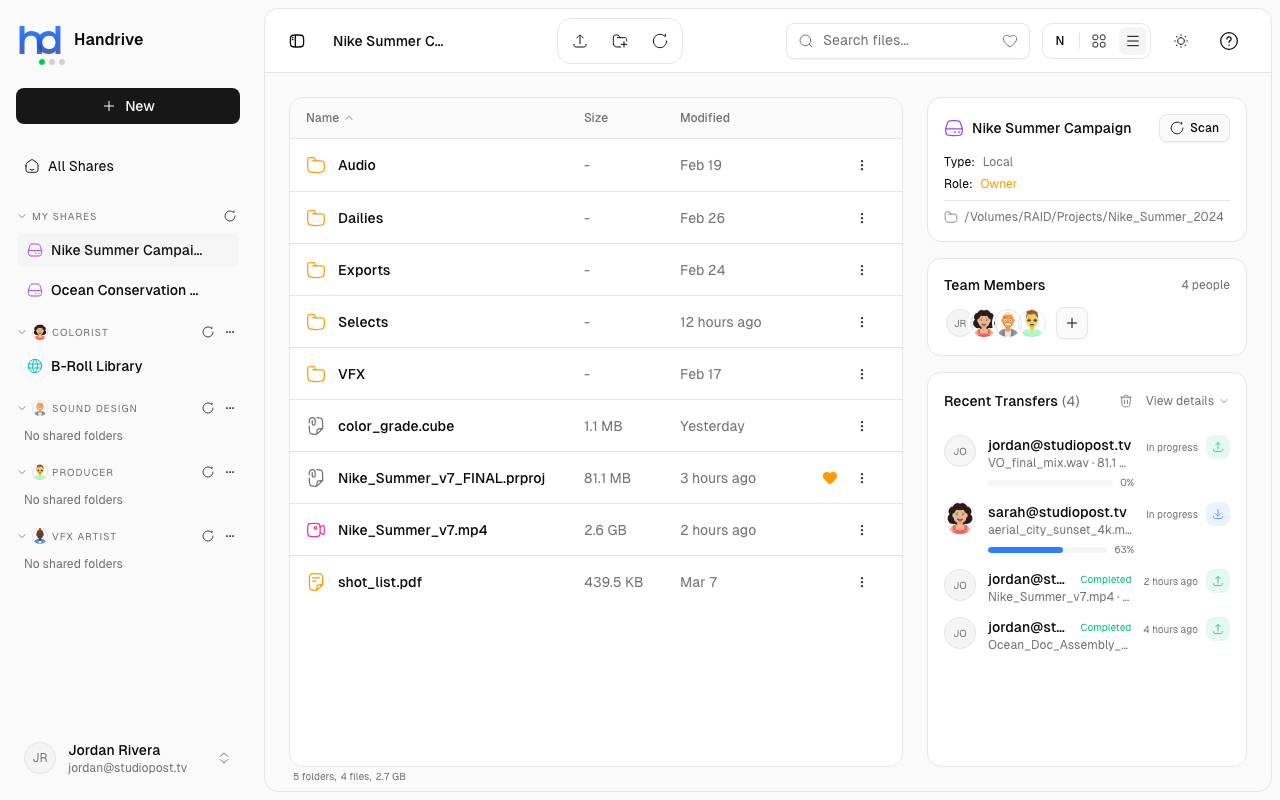
Uploading Files
Drag and Drop
- Open the share and navigate to the destination folder
- Drag files from your computer into the Handrive window
- Drop to upload
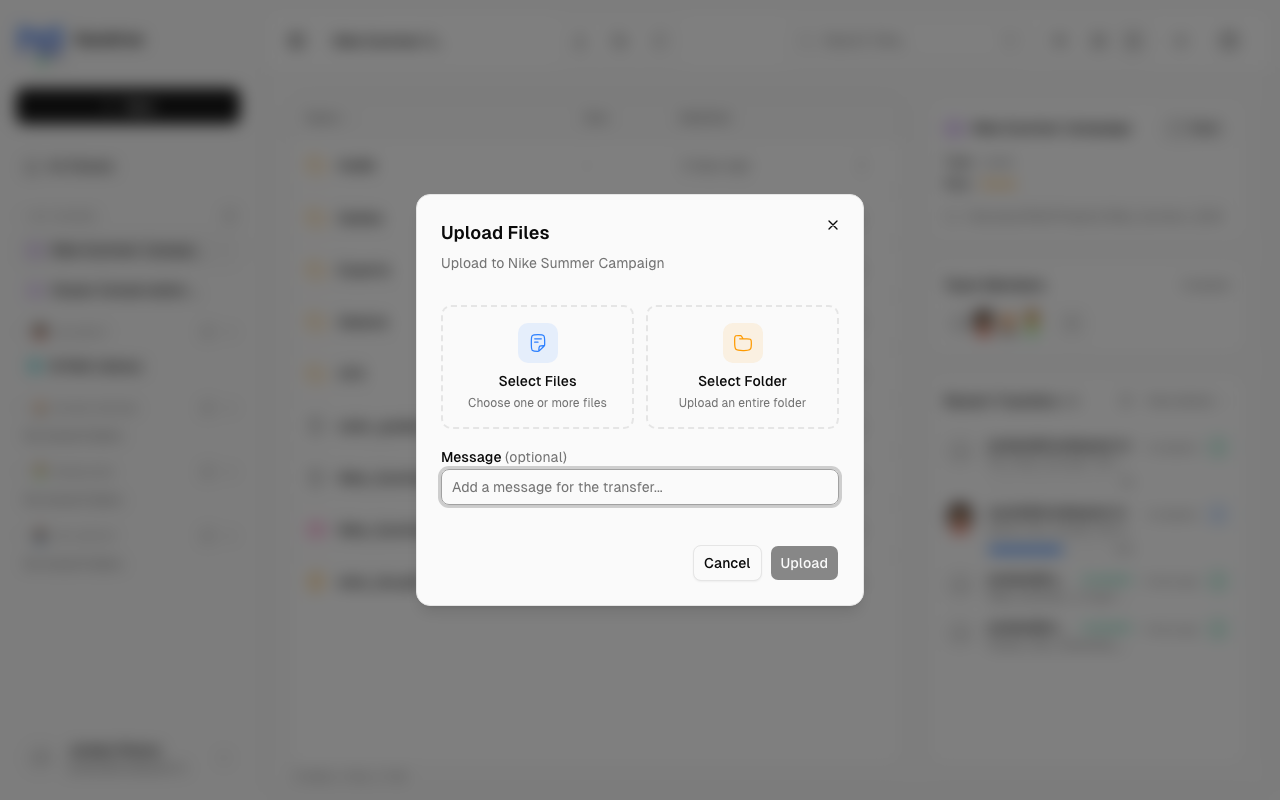
Upload Button
- Click Upload in the toolbar or action menu
- Select files from your computer
- Click Open to upload
Upload Folders
You can upload entire folders, preserving their structure.
note
You need Editor or higher permission to upload files.
Downloading Files
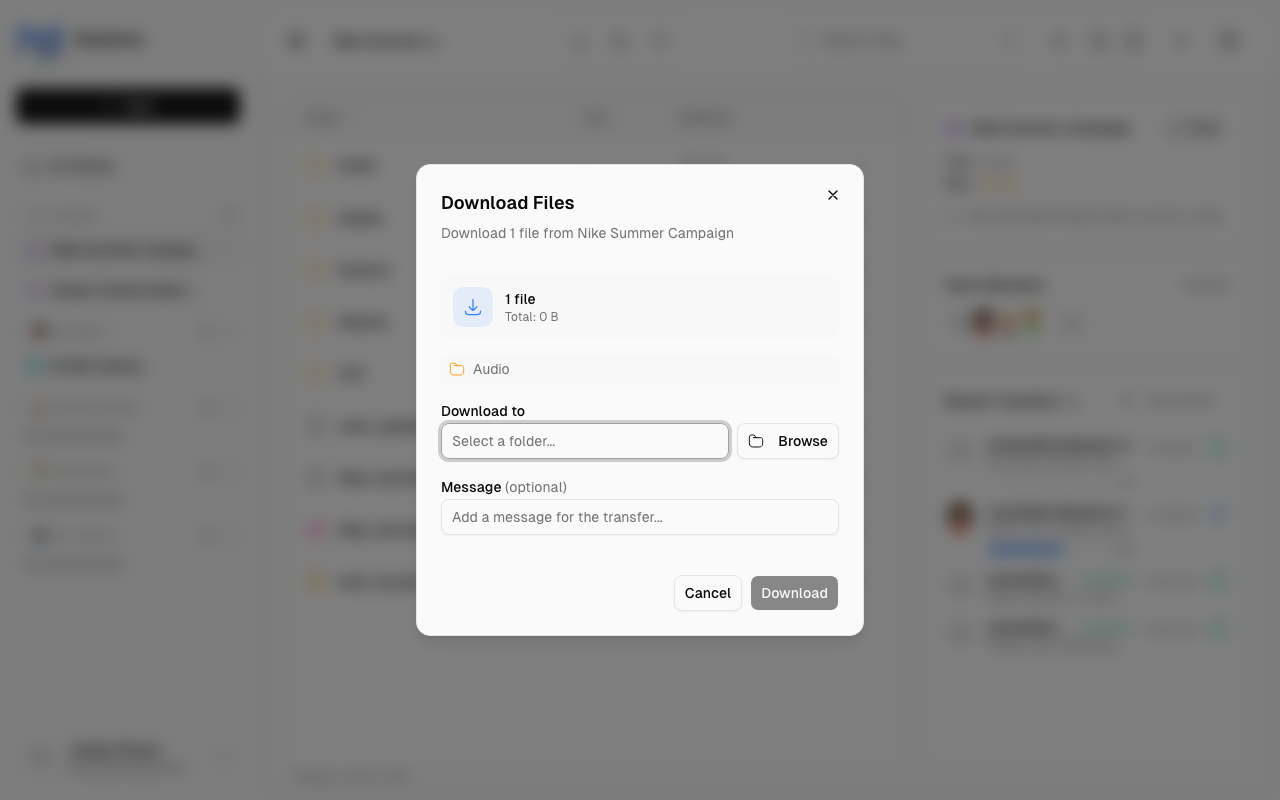
Single File
- Click the file's menu (three dots) → Download
- Or right-click → Download
Multiple Files
- Select multiple files (Shift+Click or Cmd/Ctrl+Click)
- Click Download in the action bar
- Choose a destination folder
- Files download to that location
Download Folders
Select a folder and choose Download to get all its contents.
note
Double-clicking a folder navigates into it. Double-clicking a file opens the download dialog.
Opening Files Locally
For files in your own shares:
- Right-click the file
- Select Open in Finder (macOS) or Open in Explorer (Windows)
This opens the actual file location on your device.
Deleting Files
caution
Deleting a file removes it from disk. This cannot be undone.
To Delete
- Select the file(s)
- Press Delete key or right-click → Delete
- Confirm the deletion
What Gets Deleted
- Your shares: The actual file is deleted from your device
- Remote shares: Requires Editor+ permission; deletes from owner's device
File Types
Handrive handles all file types. Some notes:
| Type | Notes |
|---|---|
| Images | Thumbnails shown in grid view |
| Documents | Download to view in native apps |
| Videos | Large files may take time to transfer |
| Archives | .zip, .tar, etc. transfer as single files |
Transfer Status
When uploading or downloading:
- Progress appears in the transfer panel
- You can continue browsing while transfers run
- Cancel transfers from the transfer history
See Transfers for more details on managing transfers.