Managing Shares
Learn how to manage your existing shares.
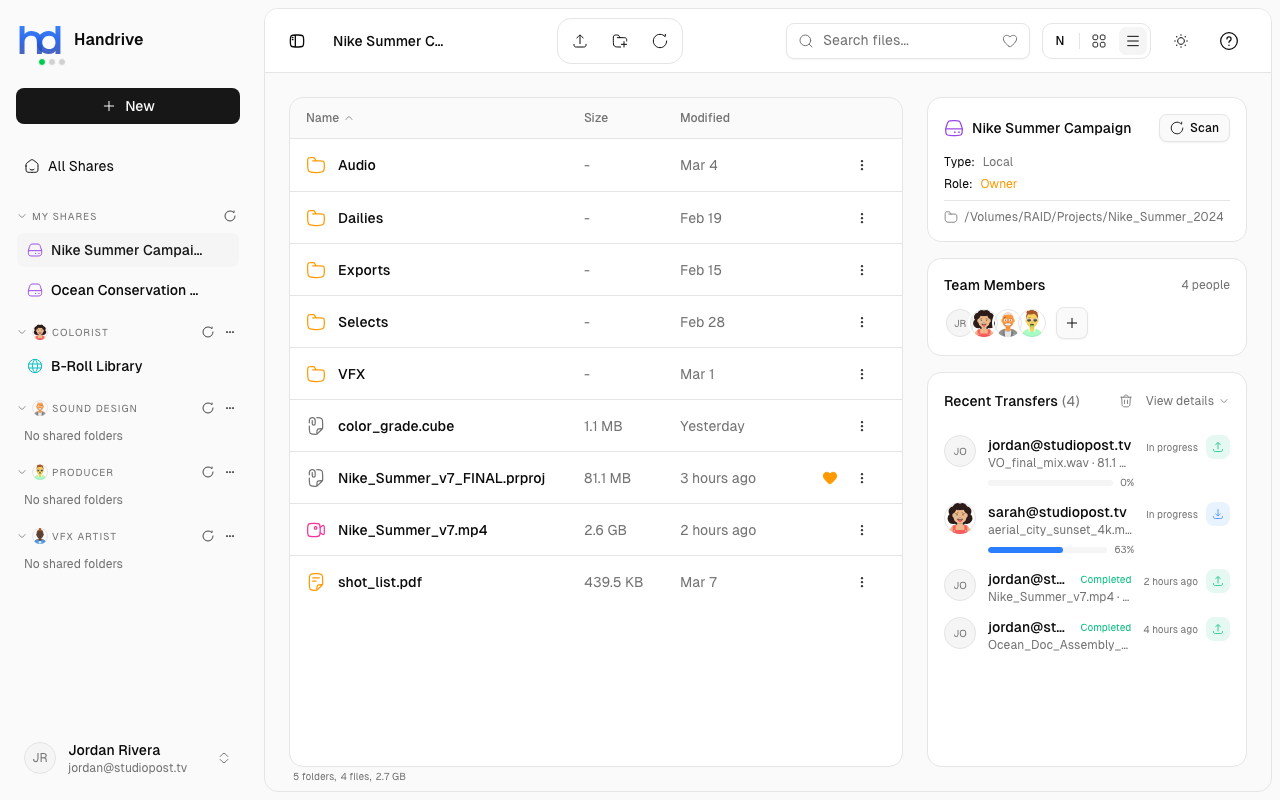
Share Actions
Right-click a share in the sidebar (or click the three-dot menu) to access these actions:
| Action | Description |
|---|---|
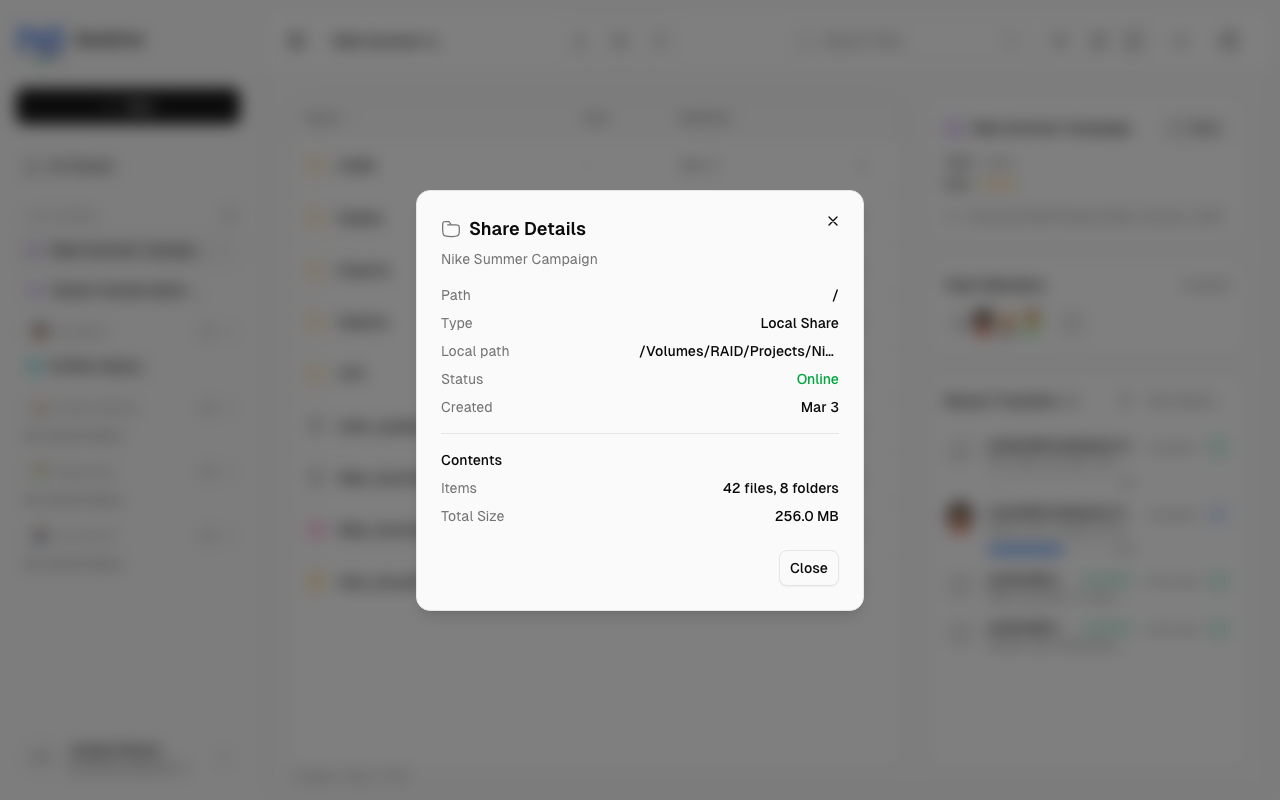
| Details | View share information (type, role, path, members) |
| Edit | Change the share's name and description |
| Delete Share | Remove the share from Handrive |
Editing a Share
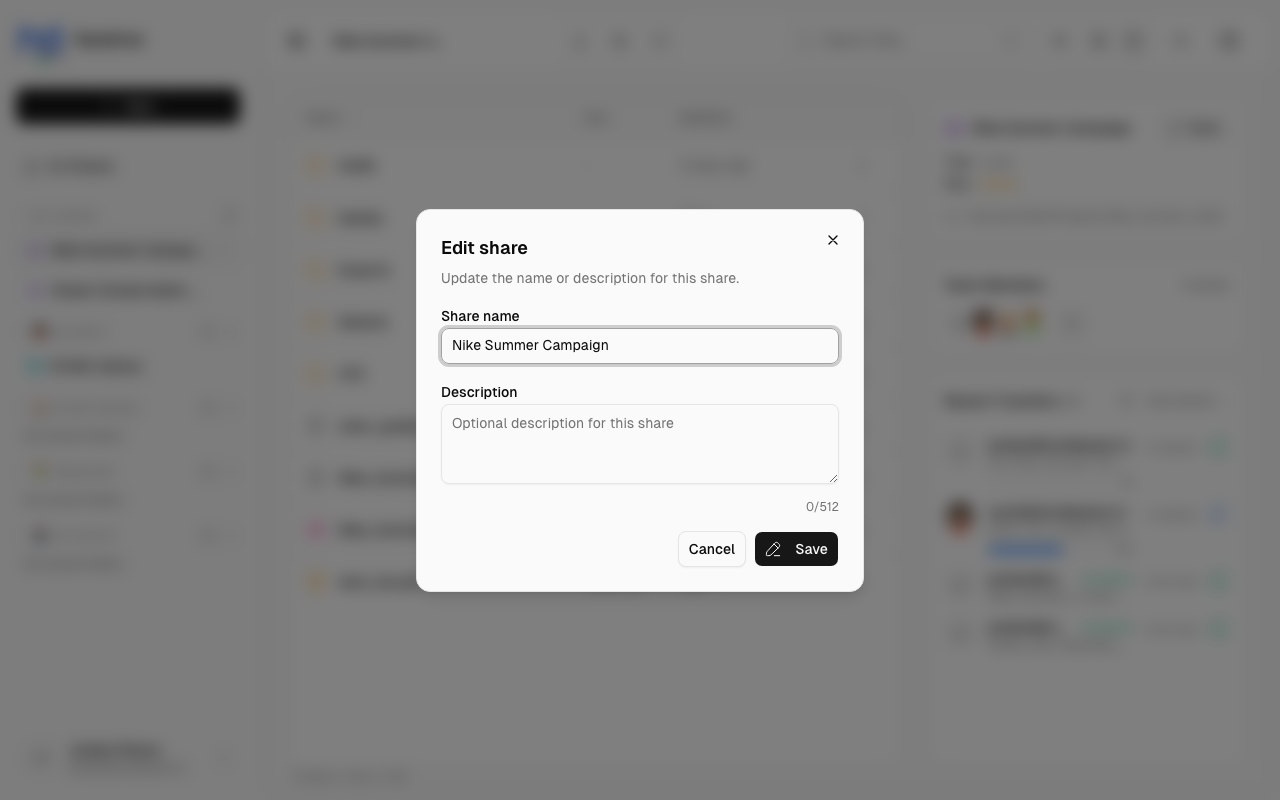
- Right-click the share in the sidebar
- Select Edit
- Update the name or description
- Click Save
Editing a share only changes its display name and description in Handrive. It does NOT rename the folder on your device.
Scanning for Changes
If you've added or modified files directly on disk (outside of Handrive), scan the share to update the file list:
- Open the share in the file browser
- Click the Scan button in the Info Panel (right side)
Or use the Refresh button in the header to reload the file list.
Handrive will re-index the folder and show any new or changed files.
Syncing Remote Shares
If you're viewing a remote share and want to see the latest files:
- Open the share
- Click Refresh in the header
This fetches the current file list from the share owner's device.
Viewing Share Details
Share information is displayed in the Info Panel on the right side of the screen:
- Share name and type (Local/Remote)
- Your role (Owner, Admin, Editor, Viewer)
- Local path (for your own shares)
- Team Members with access
- Recent Transfers
You can also right-click the share and select Details to view this information:
Deleting a Share
Deleting a share removes it from Handrive. For local shares, this does NOT delete the files on your device—only the share connection.
To delete a share:
- Right-click the share
- Select Delete
- Confirm the deletion
What happens:
- Your shares: The share is removed from Handrive. Files on disk are untouched. Members lose access.
- Remote shares: You leave the share. Your access is removed. The share still exists for others.