Profile Settings
Manage your personal profile information.
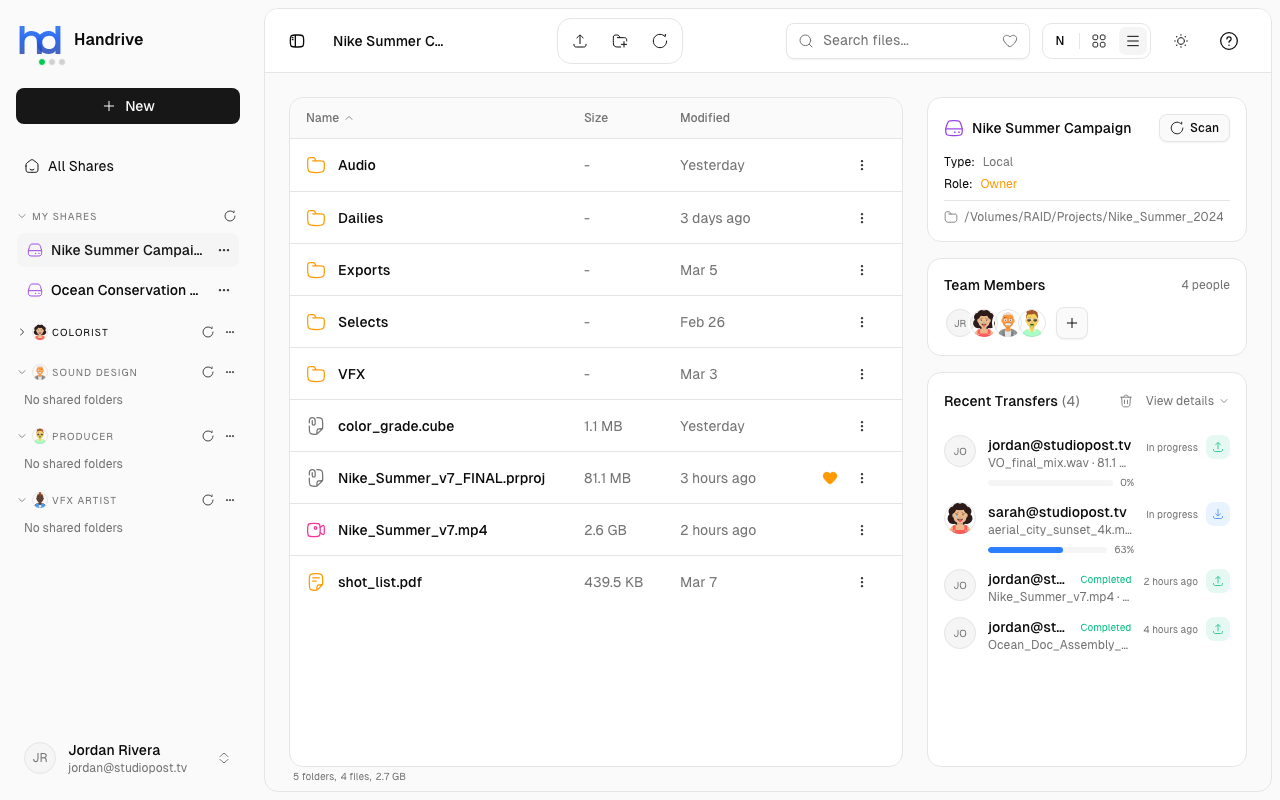
Accessing Profile
- Click your avatar/name in the sidebar
- Select Profile
Profile Information
Email Address
Your sign-in email. This cannot be changed as it's your account identifier.
Others see your email when you're a member of their shares (unless they set an alias for you).
Display Name
Set a name that others see instead of your email:
- Open Profile settings
- Enter your name in the Name field
- Click Save
Your name appears:
- In share member lists
- When others add you as a contact
- In transfer history
tip
Use your real name or a recognizable nickname so collaborators know who you are.
Avatar URL
Add a profile picture using an image URL:
- Open Profile settings
- Paste an image URL in the Avatar URL field
- Click Save
Requirements:
- Must be a direct link to an image (ending in .jpg, .png, etc.)
- Image should be publicly accessible
- Square images work best
Example: https://example.com/my-photo.jpg
Privacy Considerations
Your profile info is visible to:
- People who add you as a contact
- Members of shares you belong to
Keep this in mind when choosing your display name and avatar.